
The MainWP Dashboard provides a centralized interface for managing all your connected WordPress sites. Understanding the layout, widgets, navigation, and table controls allows you to work efficiently across hundreds of sites.
What You Will Accomplish
After reviewing this page, you will be able to:- Customize widget layout and visibility on Operations pages
- Navigate between global and individual site views
- Sort, filter, and act on data in MainWP tables
- Select sites for bulk actions using the Select Sites metabox
Prerequisites
- MainWP Dashboard installed and activated on your Dashboard site
- At least one Child Site connected (see Getting started with MainWP)
If you upgraded from a MainWP version before 4.5 and see visual issues, perform a hard refresh (Ctrl + Shift + R on Windows, Command + Shift + R on Mac) or clear your browser cache.
Widgetized Pages
MainWP Operations pages display multiple widgets that summarize your Child Sites and the actions needed to maintain them. You can customize the layout to match your workflow.Reorder Widgets
Drag and drop widgets to customize their order. MainWP Dashboard remembers your arrangement for future visits.Resize Widgets
Grab the lower-right corner of any widget and drag to adjust its size.Save or Load Layouts
Use Layout in the header to save your current widget arrangement or load a previously saved layout.Enable or Disable Widgets
Open Page Settings, check or uncheck widgets in the list, and click Save Settings.Widgets
Update Overview

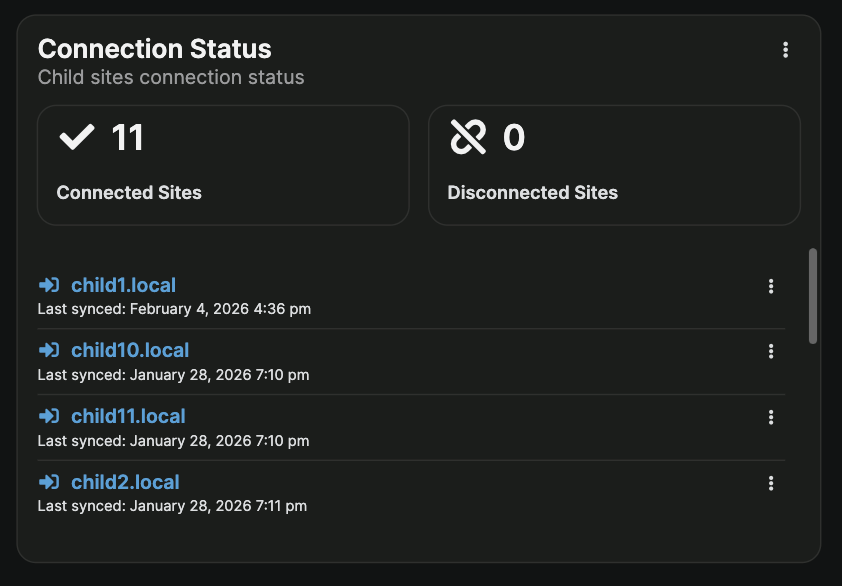
Connection Status
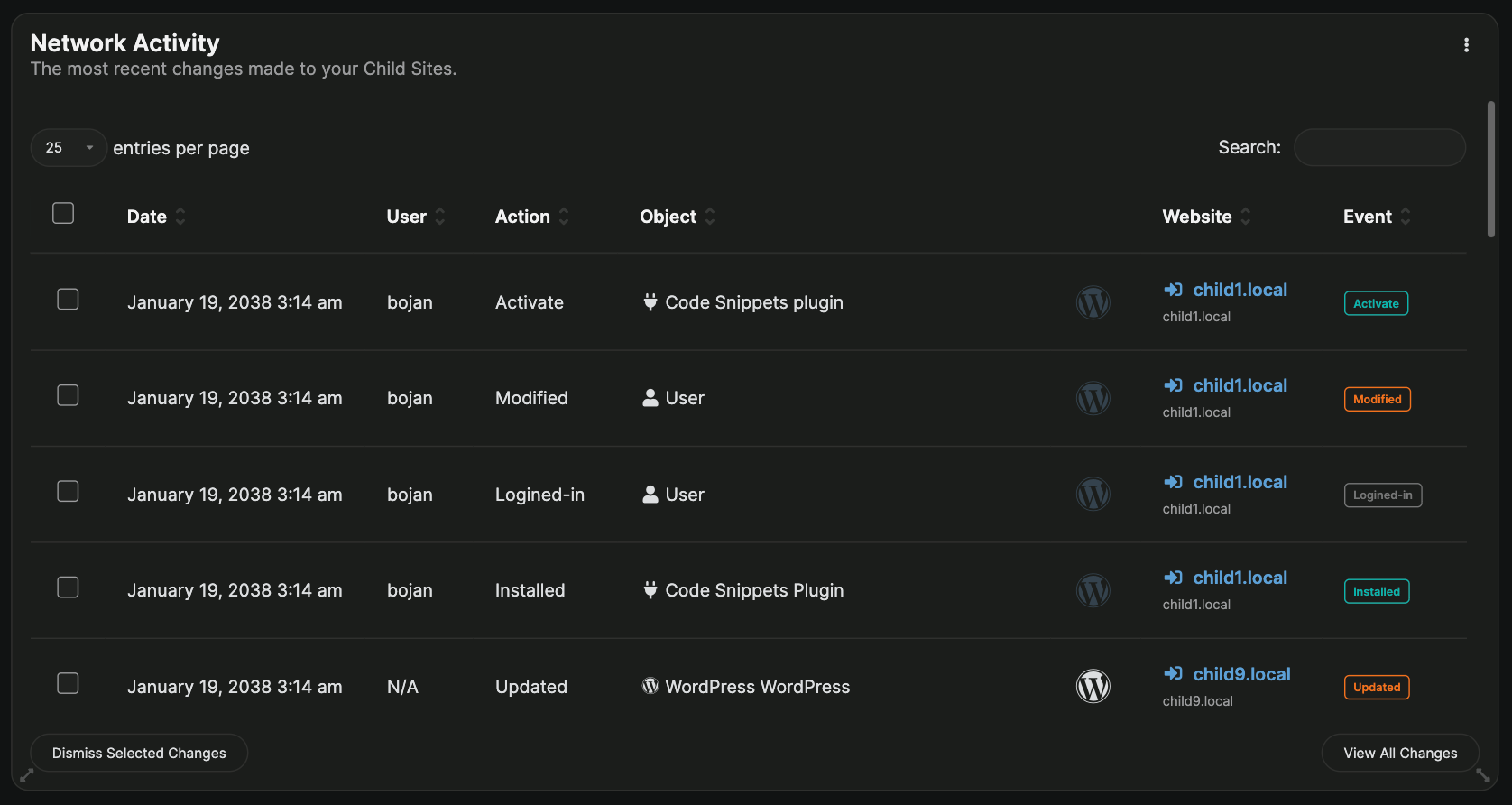
Network Activity
Recent Posts
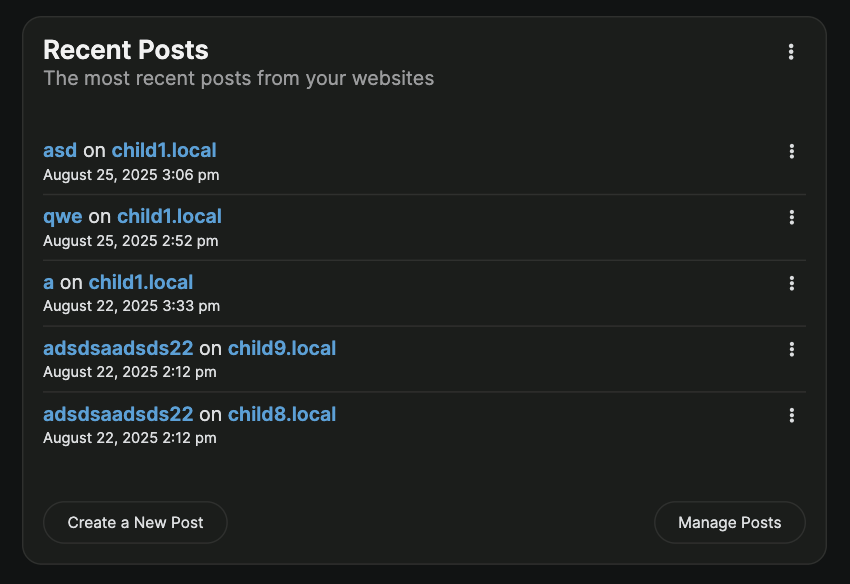
The dropdown menu at the top toggles between post statuses. Click Create a New Post to create content on your Child Sites from the post creation screen. On an individual Child Site dashboard, the widget shows posts from that site only.
Recent Pages
This widget displays the five most recent pages across your Child Sites, showing the page title, date, and source website.
The dropdown menu at the top toggles between page statuses. Click Create a New Page to create content on your Child Sites. On an individual Child Site dashboard, the widget shows pages from that site only.
Site Hardening
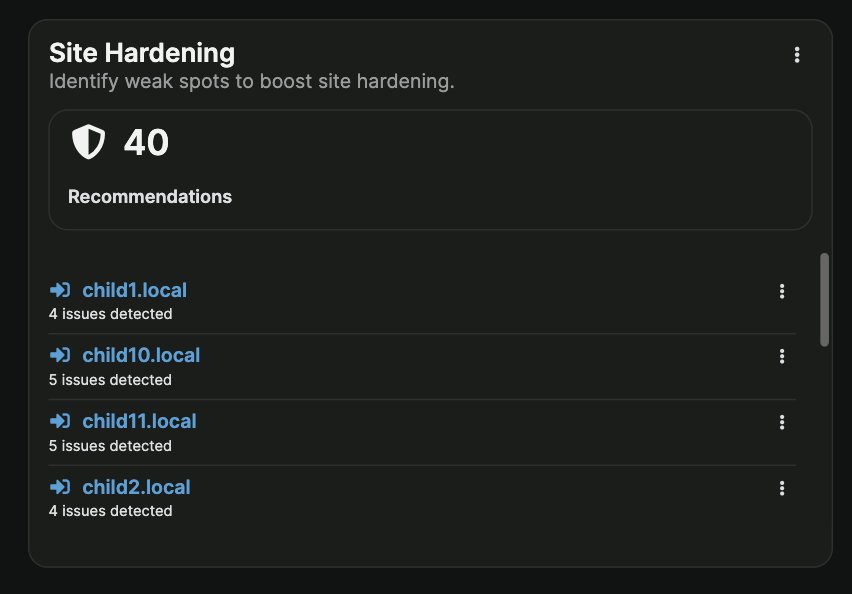
Plugins (Individual Site Operations)
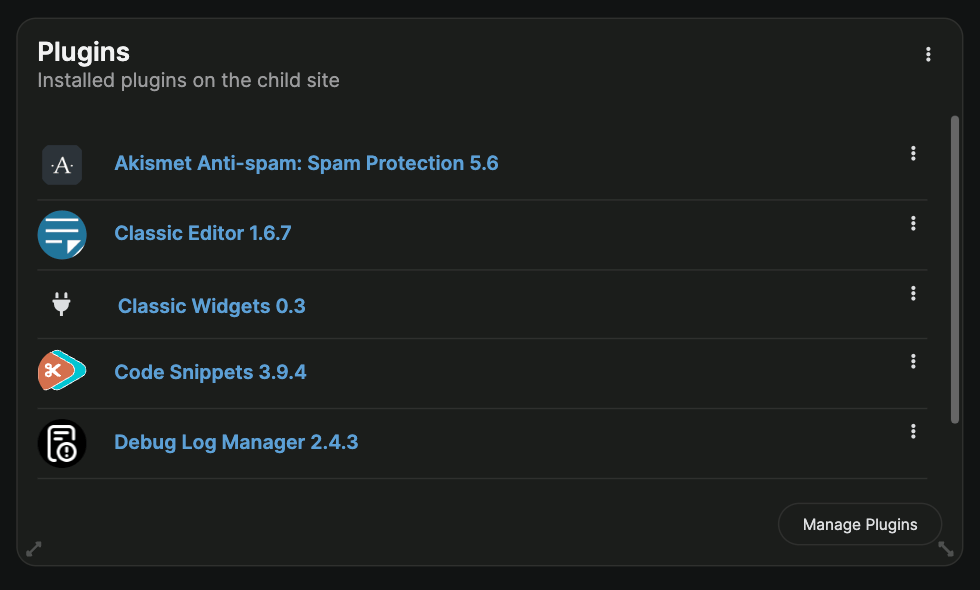
Use the widget navigation to switch between active and inactive plugins.
Themes
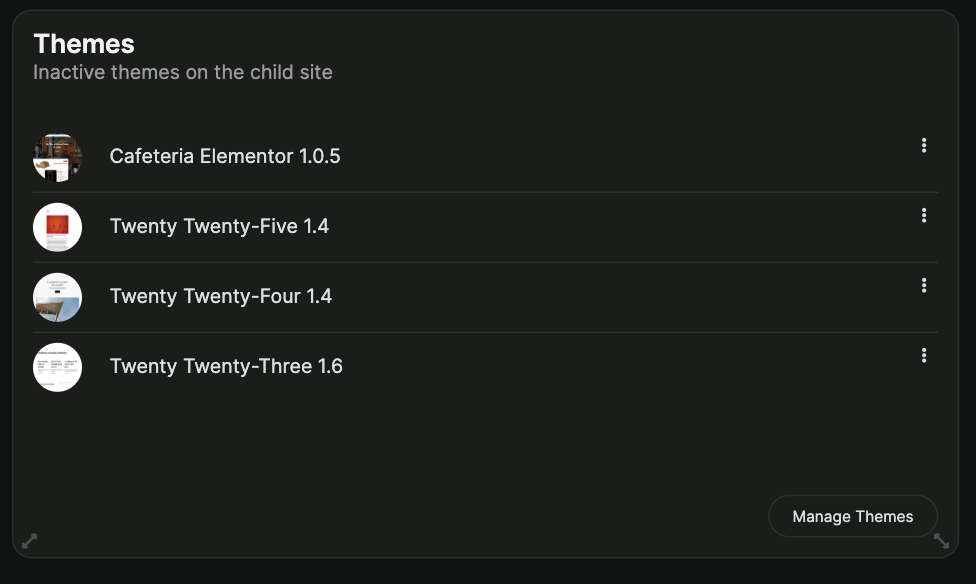
Navigation
The MainWP Dashboard navigation panel appears on the left side and provides quick access to all sections.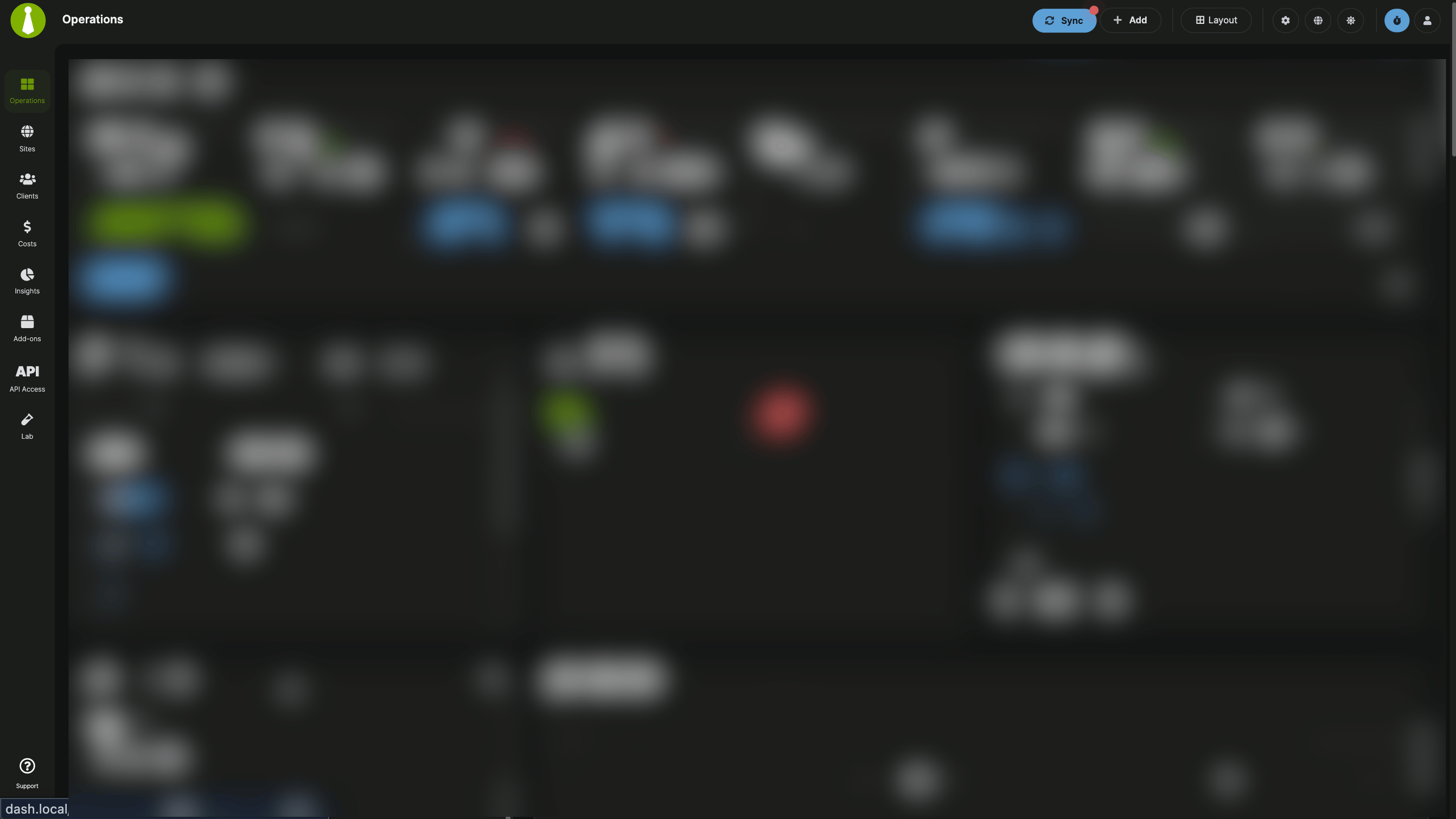
Sidebar Navigation
For a full breakdown of Support modal behavior, see MainWP Support Modal.
Header Elements
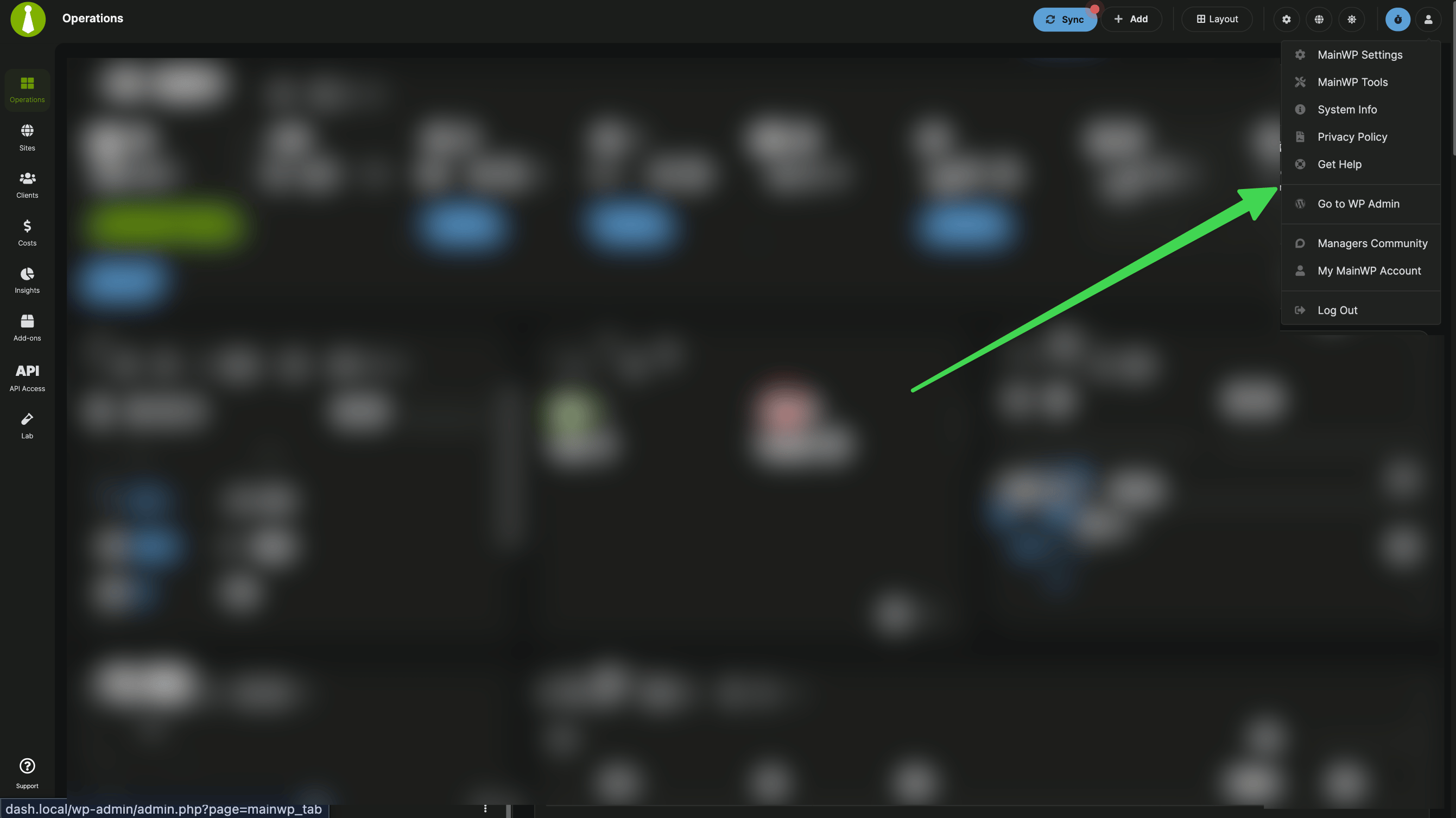
MainWP Dashboard also provides page navigation tabs that vary by section. Each MainWP section has different page navigation options, and some sections have no tabs.
Tables
MainWP uses DataTables for advanced interaction controls throughout the interface.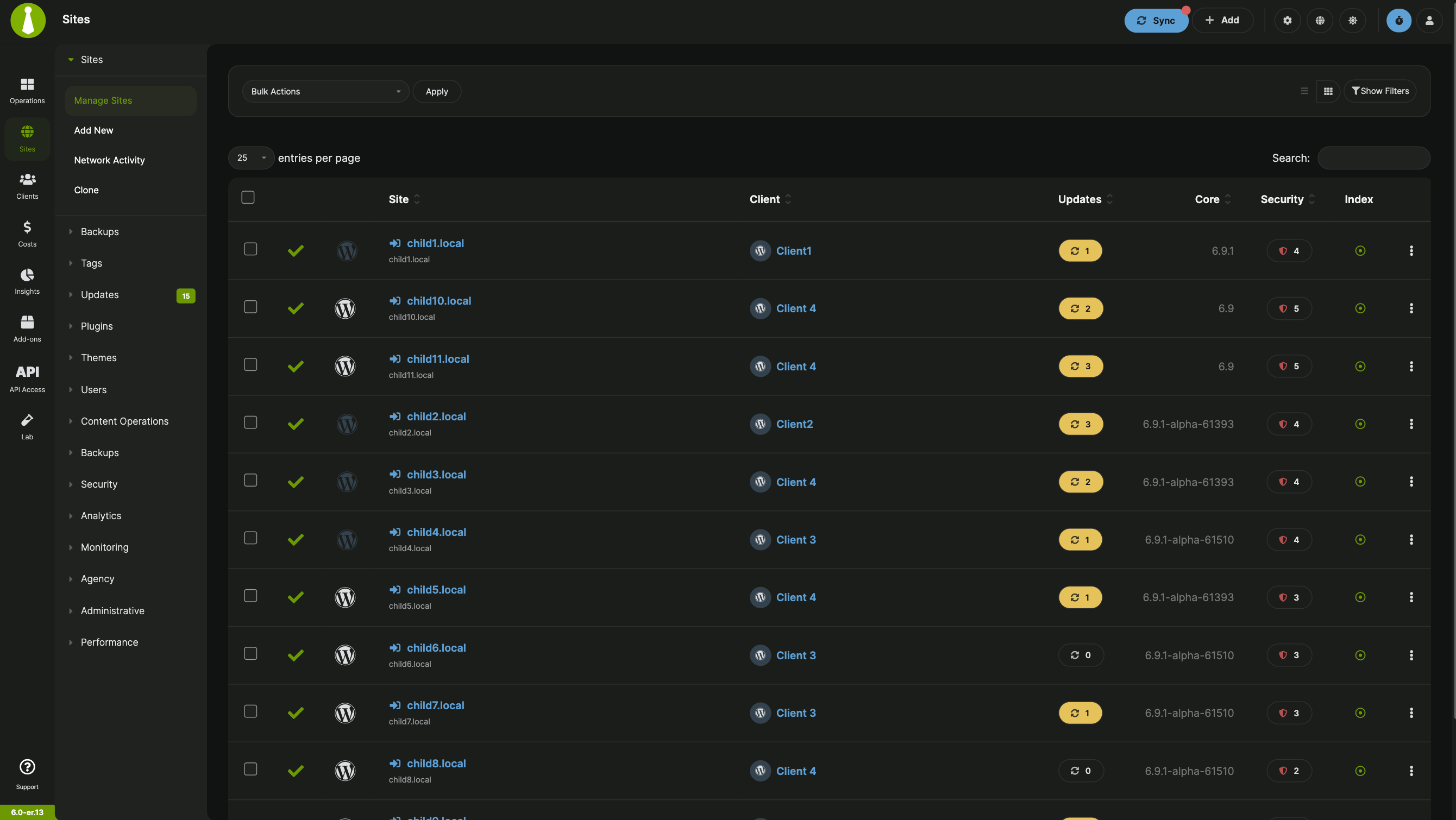
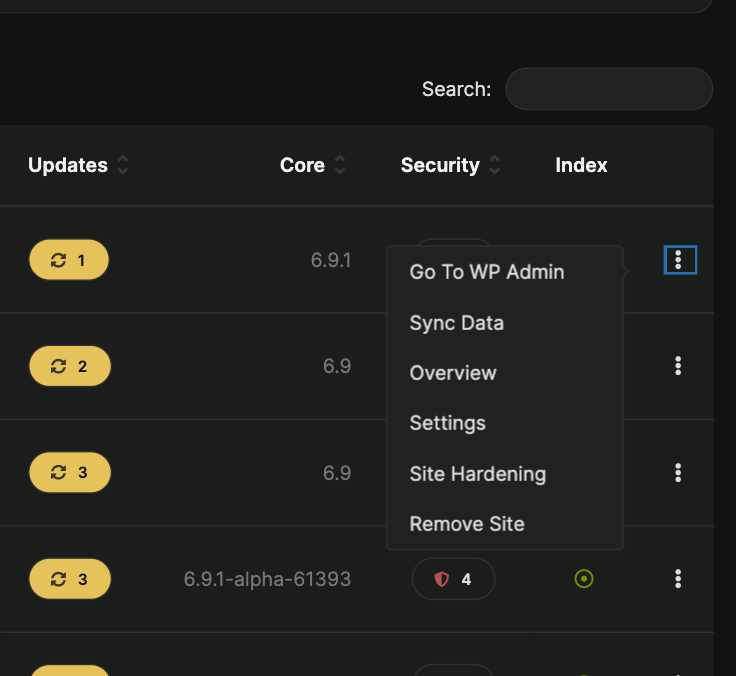
Actions Menu
Sorting Options
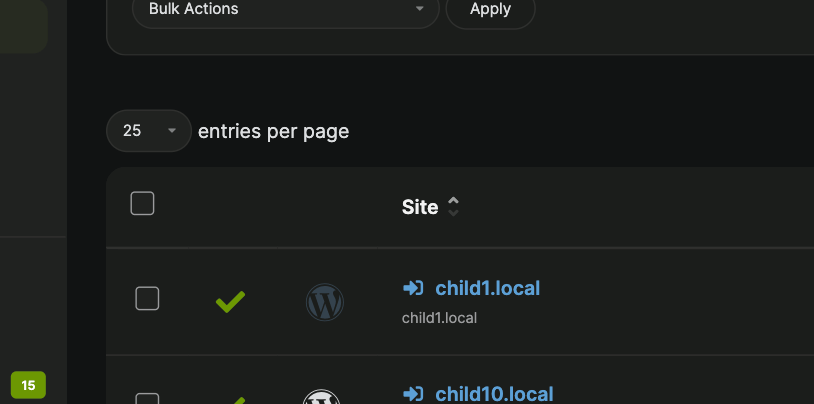
Columns Order
Drag and drop columns to set a custom order. MainWP remembers your arrangement, so this adjustment persists across page loads.Bulk Actions
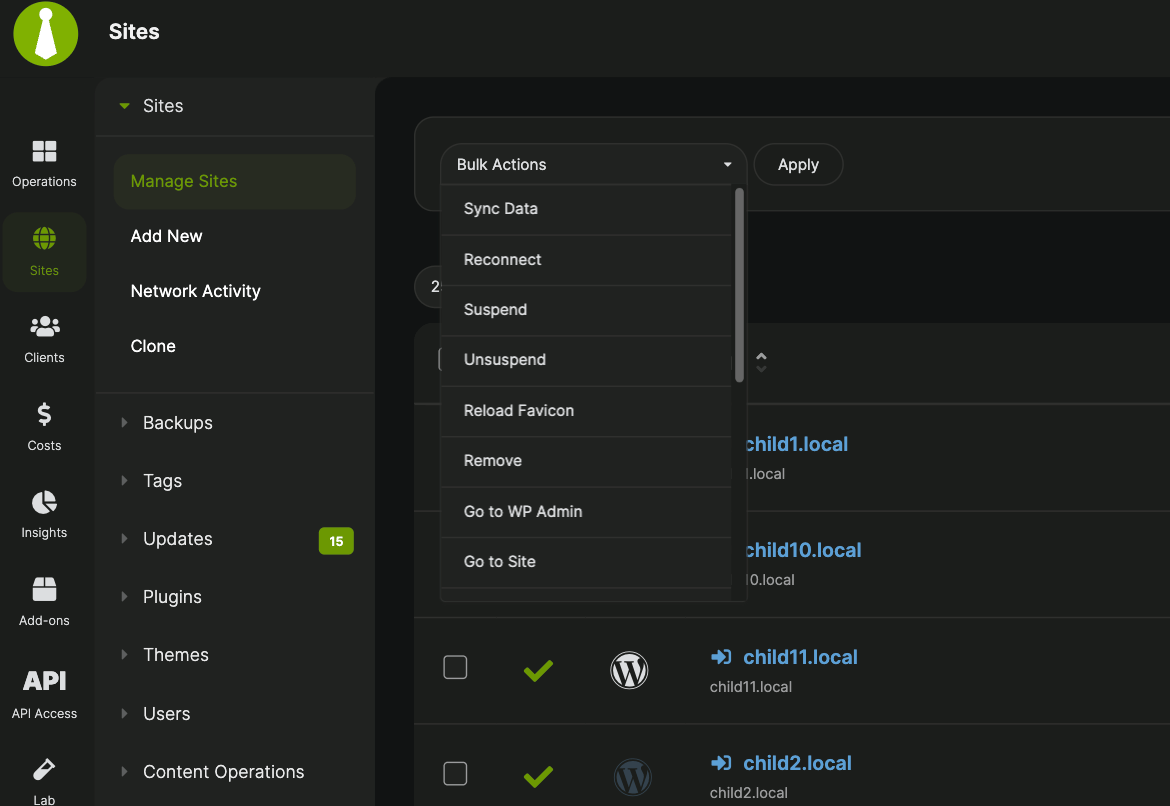
Table Filter

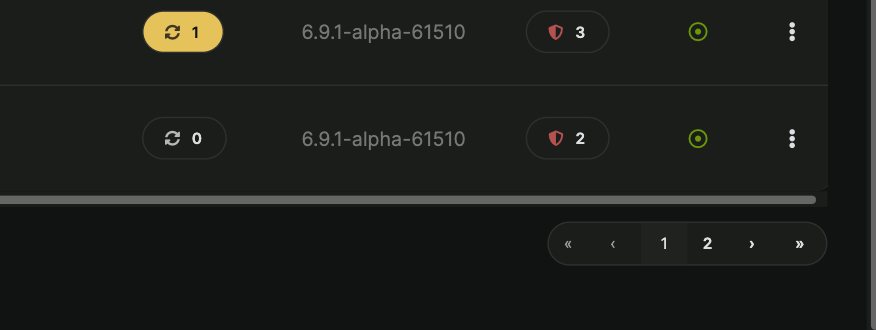
Pagination
Manage Plugins and Themes Table Features
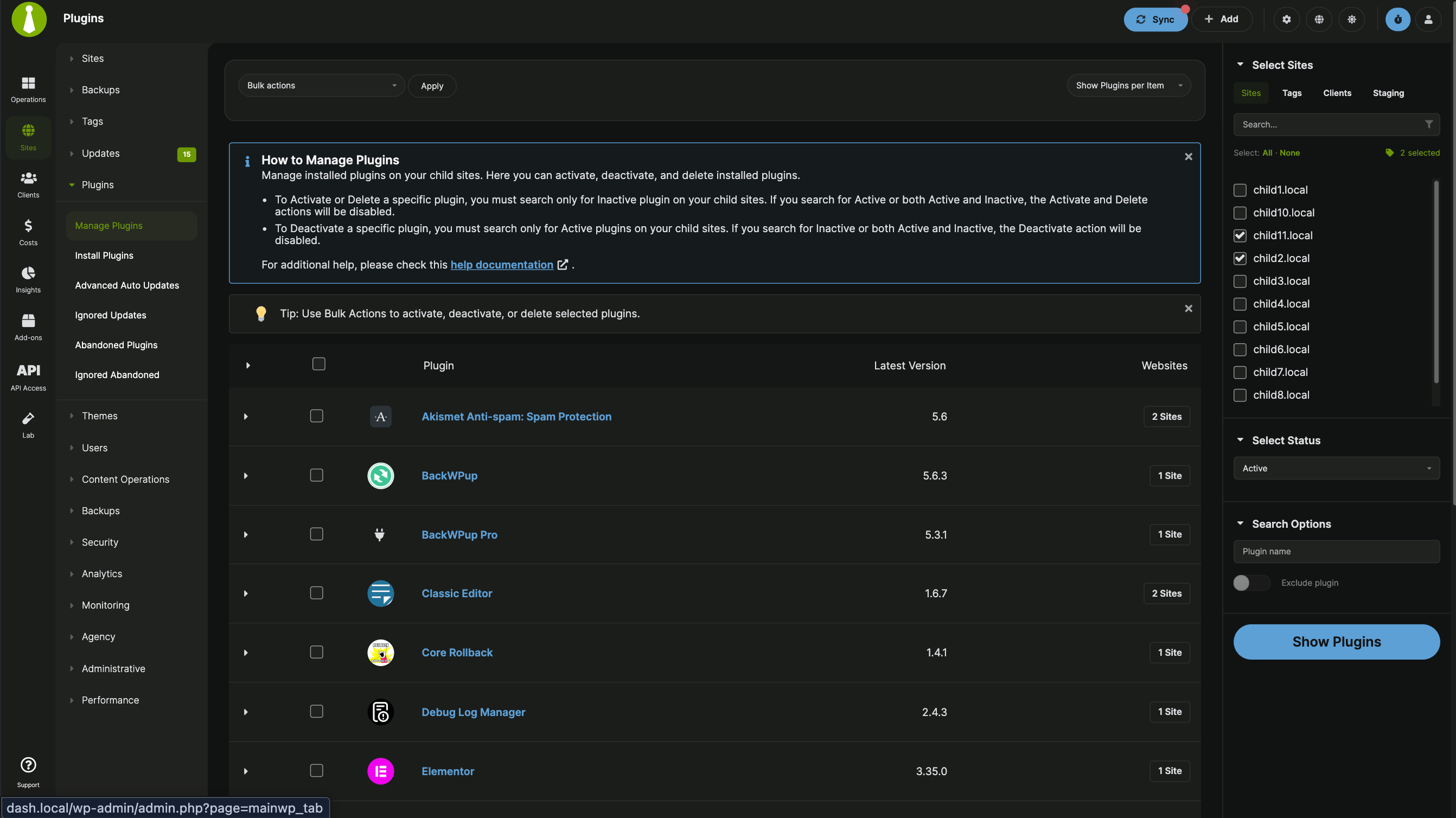
Select Sites
The Select Sites metabox appears throughout MainWP and determines which Child Sites an action affects. Common uses include searching for content, publishing posts, and installing plugins or themes.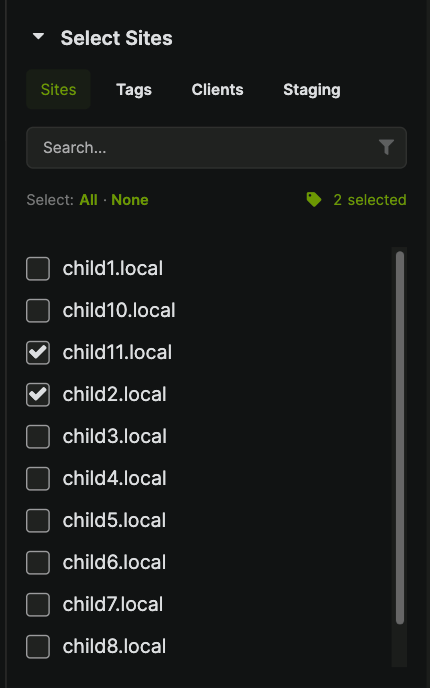
Selection Methods
Quick Selection
The All and None buttons above the site list provide fast selection or deselection.Sites Filter
Type a site name in the filter field at the top of the metabox to locate specific sites quickly. This feature proves especially useful when managing many Child Sites.Sidebar Accordion
The MainWP Sidebar contains collapsible sections with different option groups. Common sections include Select Sites, search parameters, and action buttons at the bottom.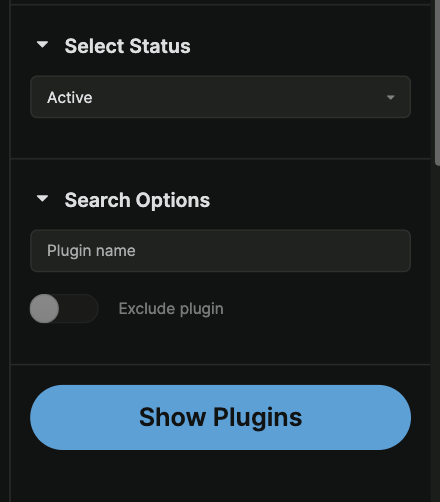
Individual Site Mode
Most MainWP features work at both global level (affecting all Child Sites) and individual site level.Single Site Overview
Individual Child Site mode lets you control settings per site and monitor site-specific data.1
Navigate to Manage Sites
Go to MainWP > Sites > Manage Sites.
2
Select a site
Locate the Child Site and click its name under the Site column.
Installed MainWP Add-ons display additional tabs as applicable.
Page Settings
Most MainWP Dashboard pages include a Page Settings button in the top-right corner. These settings apply to the specific page where you configure them.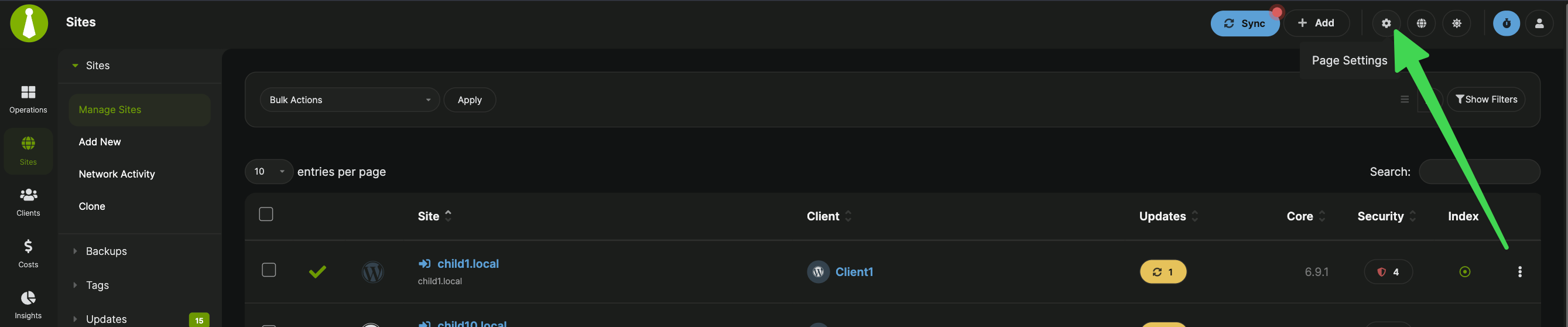
Custom Event Monitor
The Custom Event Monitor logs system events and helps with troubleshooting. Access it from MainWP > Info > Custom Event Monitor.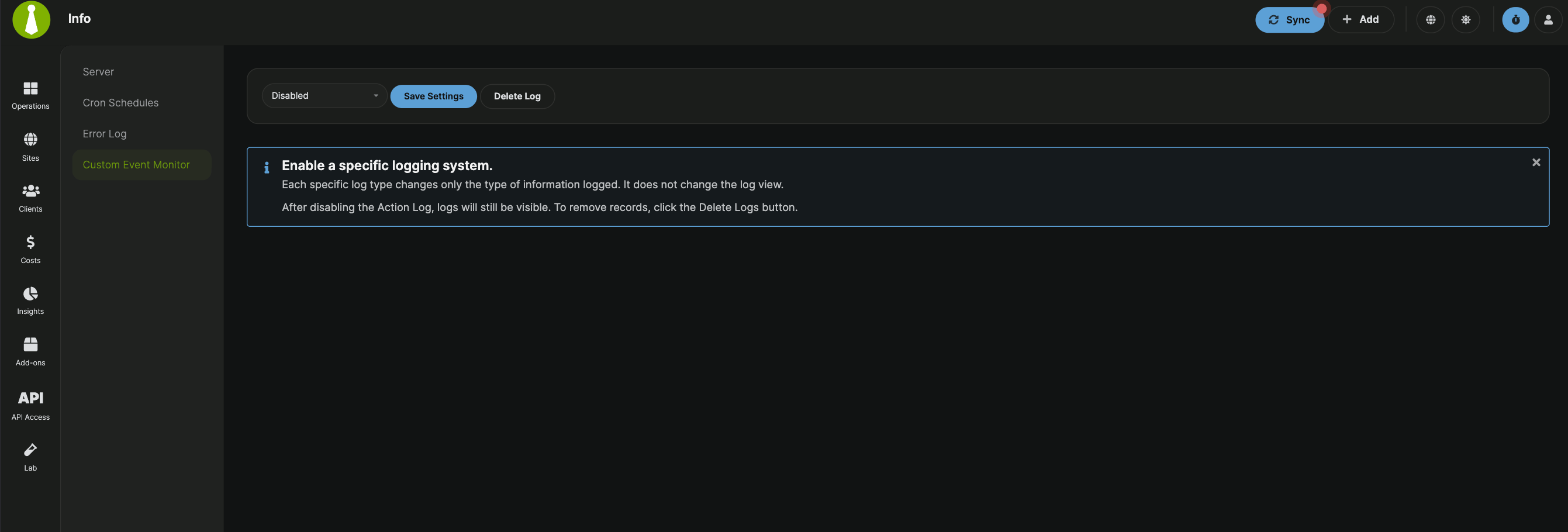
The Custom Event Monitor remains in alpha phase with a limited number of tracked actions. Coverage will expand in future releases.
Common Real-World Use Cases
Common Problems and Fixes
Self-Check Checklist
Confirm you understand the MainWP interface:- You can locate the main navigation sidebar and identify its sections
- You can reorder and resize widgets on an Operations page
- You can enable or disable widgets using Page Settings
- You can sort and filter data in tables
- You can select sites by site, tag, or client in the Select Sites metabox
- You can access an individual site’s overview by clicking its name
Related Topics
- Getting started with MainWP - Installation and initial setup
- Manage Child Sites - Adding and managing sites
- Manage Clients - Organizing sites by client